How to Batch Upload Shipments for Quoting & Dispatching
Save even more time with Freightview by allowing us to process multiple shipments with a single CSV file uploaded directly to your account. This option is available for Parcel, LTL, & Truckload - plus it's included with your subscription.
The Batch upload shipments option is located at the top of your In Process page.

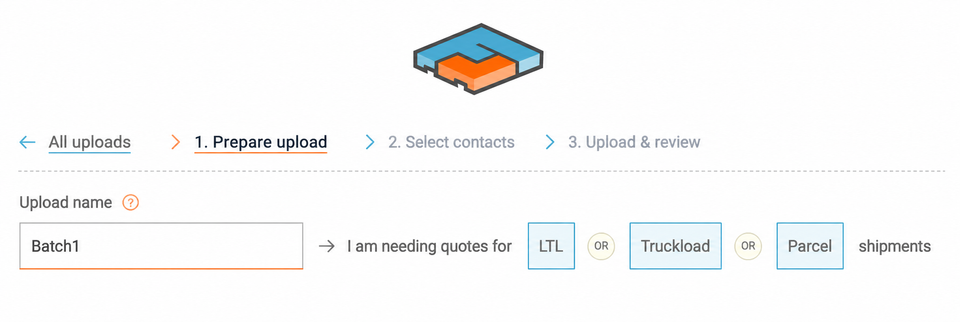
Step 1: Choose Your Workflow
CSVs should only encompass one mode per upload. To start, select the applicable mode.

Step 2: Upload Your CSV File
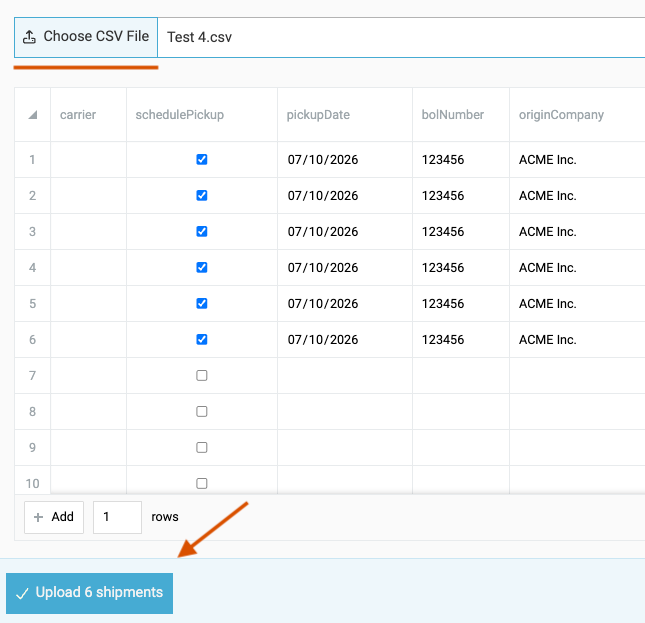
To mitigate errors, we recommend using our example CSV template to ensure your data maps correctly.

LTL & Parcel
When you are ready, hit "Choose CSV File" to upload your list of shipments.
Truckload
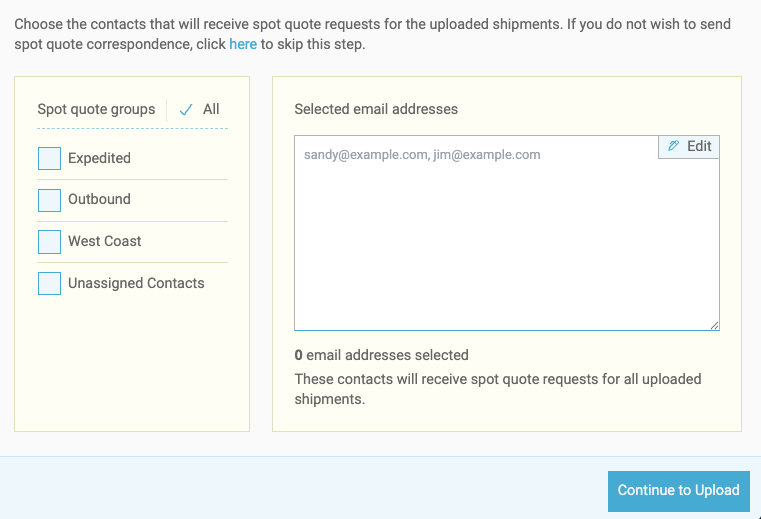
Once your file is added, we will prompt you to choose which carrier contacts should receive your quotes.
- Any Contracted rates on file that are applicable will return pricing automatically.
- Also supports Multi-stop & other project moves.
- Learn more about our Truckload Features included with your subscription.
Step 3: Submit & Review
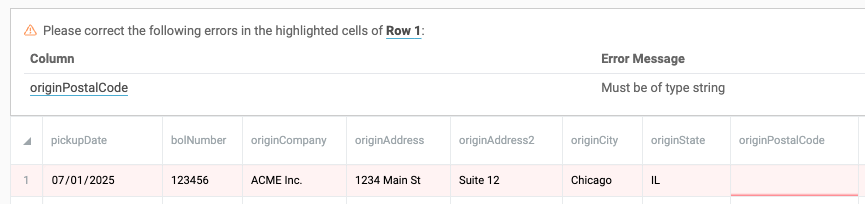
After you hit Upload, your file is sent through our system. We'll call out any errors before the upload completes.
- For LTL & Parcel, quotes will begin populating in your In Process tab.
- For Truckload, your selected carriers will receive quote requests directly in their Freightview Carrier Portal to respond.
⏱ Processing time varies based on file size and how quickly carriers respond. Contact support if the upload exceeds 50 loads and 10 minutes of delay.
Step 4: Take Action - Batch Tender for booking & dispatching
Your upload is ready! You can click away to other pages at any time and come back to batch book as many loads as you'd like. We'll create a notification so you can be alerted and track your activity at a glance.

- Open the Upload icon/slider and select -> Manage shipments.
- Remove an entire upload from the list by selecting Delete. These will be permanently removed from your list.

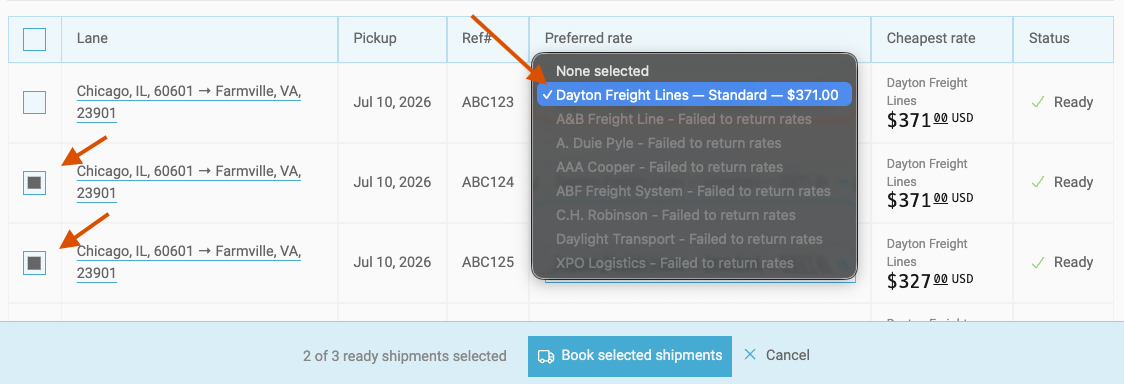
- Choose a preferred rate for each load you want to schedule, then click the box on the left to get it in the queue.
- To finalize, select Book selected shipments.
- Navigate the shipment page to see your booked shipments, or go back to In Process to view remaining quotes.

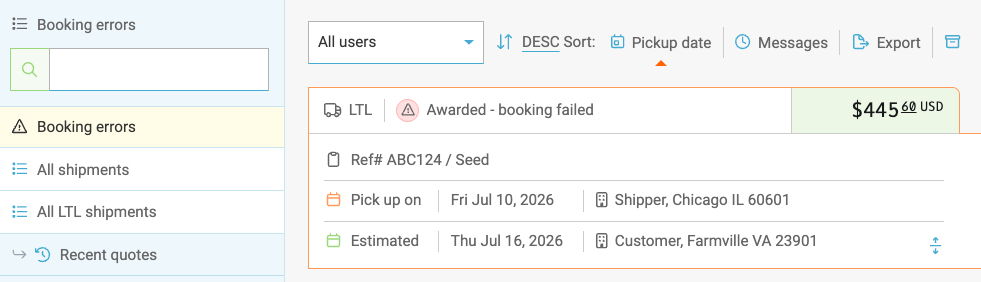
- We will flag any booking issues within both the ⚠️Booking errors /Filter and your Notification center.

Our batch tool is just one of many ways Freightview helps you ship smarter, faster, and with less hassle. You can reach our awesome Support Team with questions or feedback, or click below to Sign up today!